


 396
396
MacOS 26
- Device Not Recognized When Connecting
- Applicable to: LeapStart, LeapMove, Magic Adventures Globe
After installing LeapFrog Connect, if you are seeing an error such as "The disk you attached was not readable by this computer", please follow these instructions.
Step 1
Unplug the LeapFrog device and close the LeapFrog Connect Application.
Step 2
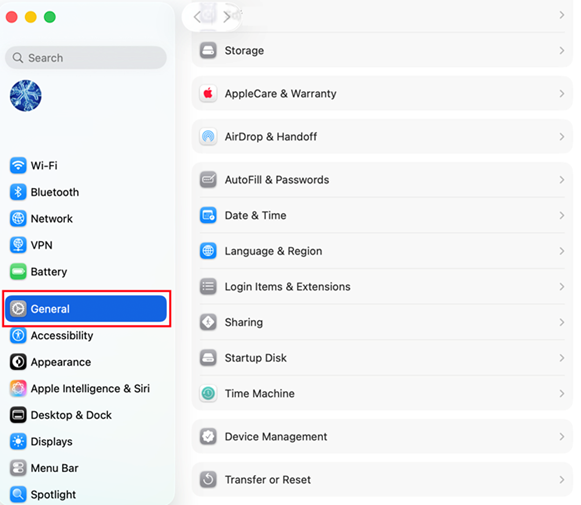
Open the Mac System Settings and go to General.
Step 3
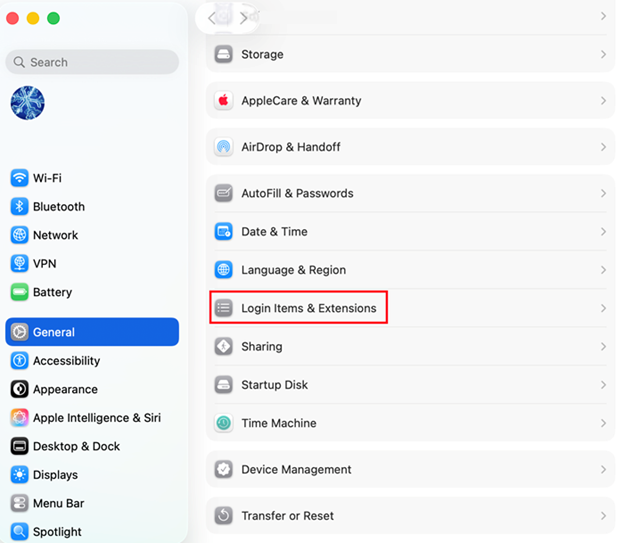
On the General panel, select Login Items & Extensions
Step 4
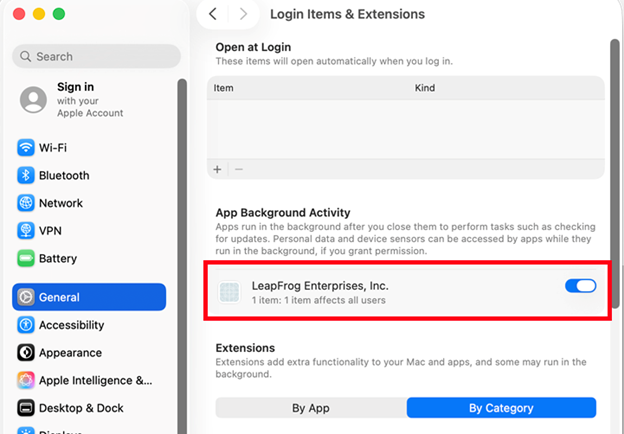
In the App Background Activity section, look for "LeapFrog Enterprises, Inc." item and ensure that it is turned "on."
Step 5
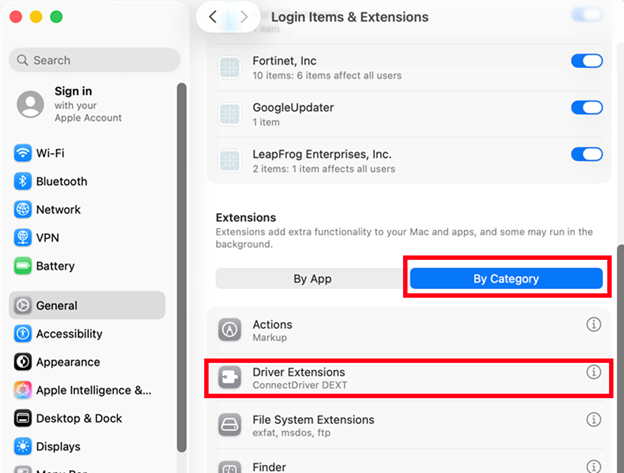
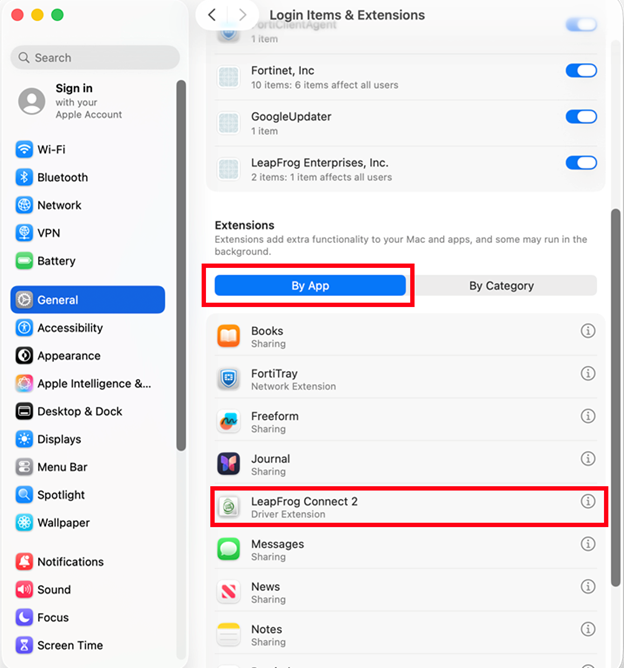
Scroll down to the Extensions section and select the By Category tab.
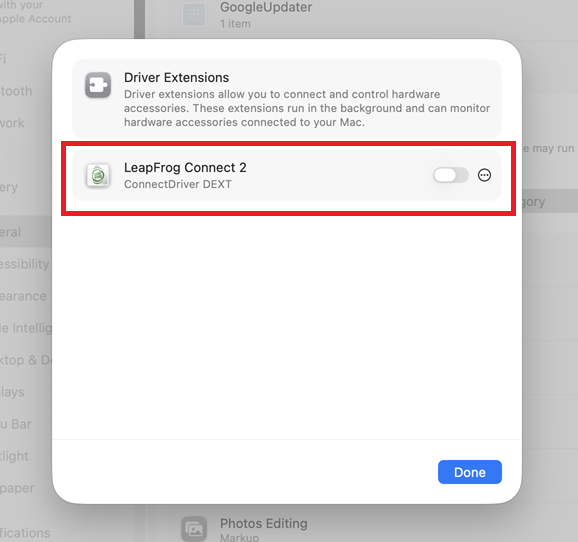
Click the info icon (the “i” with circle around it) next to Driver Extensions to open the Driver Extensions dialog box.
Note: if you do not see the Driver Extensions entry, please check both the By Category and the By App tabs.
Note: If it is not in either tab, try quitting and restarting the LeapFrog Connect application, and then return to this step.
Step 6
Turn ‘on’ the driver extension for LeapFrog Connect 2 by moving the slider to the right.
Step 7
After authorizing the change, click Done
Step 8
After making this change, the driver extension for LeapFrog Connect 2 will be visible in the By App section.
Step 9
Installation is now complete. Launch LeapFrog Connect and connect your LeapFrog device to resume setting up your device.

